 SBM LabsTCG
Measuring tools and shortcuts
Everything on the measuring page that helps you put a line exactly where it belongs. To open it, click Adjust lines in a panel (see Adjust the lines yourself).
Zoom in on a spot
Scroll on the card to zoom in where your pointer is, or use the slider and the Fit / 2× / 4× / 8× / 16× buttons under it. Drag the picture to move around. Z goes closer or wider at the point you're on, and 0 shows the whole card.
The magnifier on the right shows what's under your pointer, much closer. Scroll on it, or click its − and +, to change how close it looks: anywhere from 2× to 40×. From the keyboard, Shift++ and Shift+− do the same.
Lock the magnifier
Zoomed in on a corner, the part of the border you want to watch is often off the screen. Lock the magnifier on it, and you can keep an eye on it while you move the corner.
- Point at the spot you want to watch. If it's off the screen, zoom out with Z first, or press , and . to send the magnifier along the line you're on.
- Press Space. The magnifier locks on that spot and floats over the card.
- Go back to your corner and move it. The line moves in the magnifier too, so you can see where the far end lands as you go.
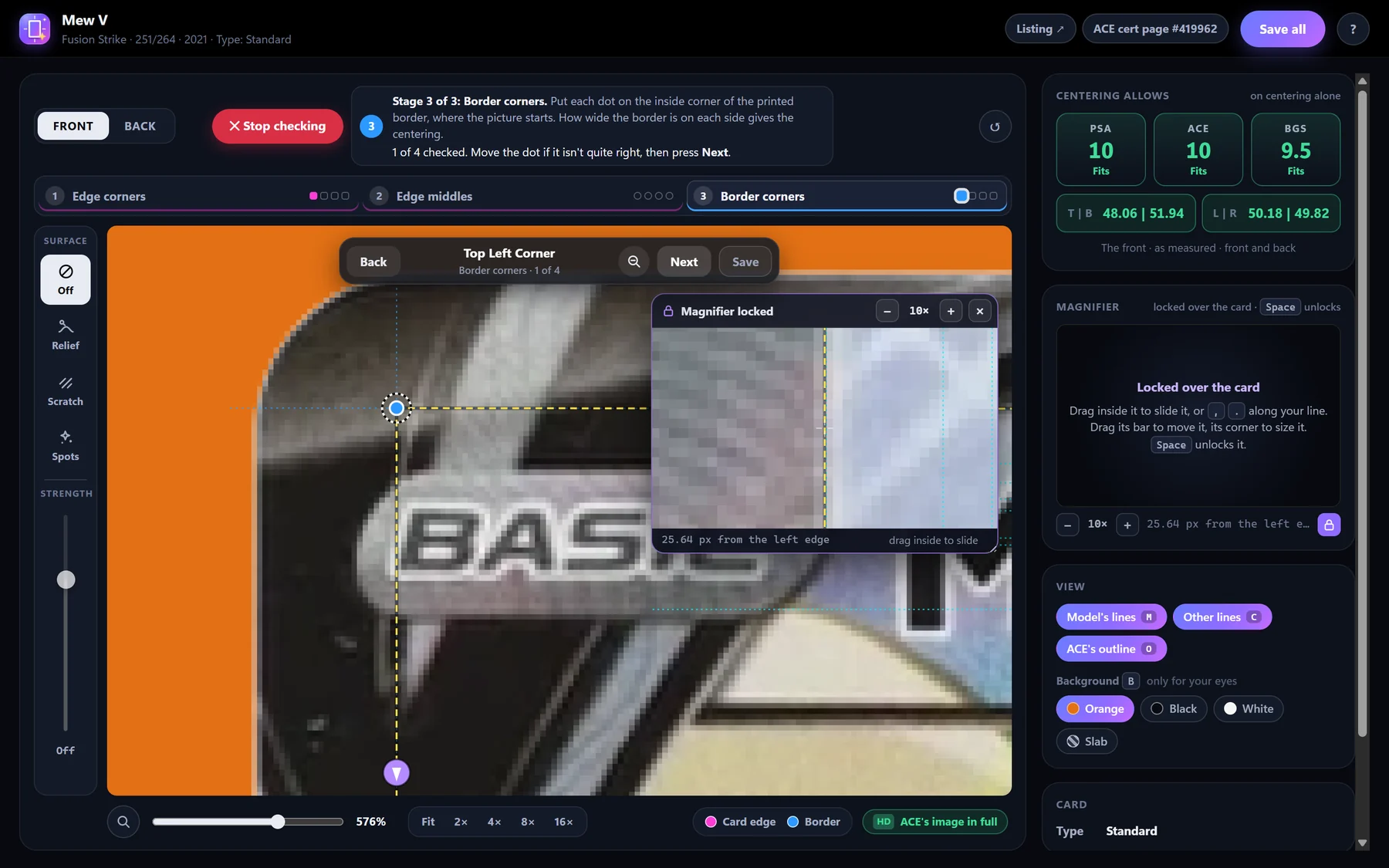
While it's locked:
- Drag inside it to slide it along the card.
- , and . jump it to the ends and the middle of the line you're on.
- Drag its bar to move the window, and its bottom right corner to make it bigger.
- A dashed purple box on the card shows where it's looking. When that's off the screen, a purple arrow at the edge points to it.
Press Space again to let it go. It remembers where you left the window, its size and its zoom for next time.
Move a dot exactly
- Drag a dot onto the spot. Drag a line itself (not a dot) to move the whole line.
- The arrow keys move the dot you're on by a quarter of a pixel. Hold Shift for a whole pixel, or Alt for smaller steps still.
- At the middle of the card's edge, the arrows bend the edge there. Its corners stay where they are.
- S straightens a corner's two lines (no lean, no bend), or unbends the edge at a middle.
Compare with the model
The View box on the right switches extra lines on and off:
- Model's lines (M): where we measured them, dotted, wherever yours are somewhere else.
- Other lines (C): the other lines the model saw on the border you're on. [ and ] jump your border to the next one, outwards or inwards.
- ACE's outline (O): on an ACE slab, where ACE's picture turns from slab to card, once you're zoomed in. A dip in the middle of a side is usually the slab's plastic holding the card, so judge the edge near the corners.
- Background (B): orange, black, white, or the slab as ACE shows it. Pick whichever makes the edge easiest to see. It changes nothing else.
Watch the grades as you go
Centering allows at the top right changes as you move the lines: PSA, ACE and BGS in the panel's colours, with T | B and L | R underneath. Green means the centering fits that company's top grade, pink a close call, red below it.
Undo, or start again
- Ctrl+Z undoes and Ctrl+Y redoes, or use the Undo button.
- The round arrow ↺ at the top right puts this stage's points back where the model had them.
- Reset to model puts every line back. Back to saved goes back to your last save.
- Remove my lines deletes your lines for this card (click it twice), here and on the server.
VMAX and other special cards
A VMAX has no top border: its art runs right to the top edge. The Card box on the right shows No top border, and on the Border stage a dotted Top guide shows where a top border would end, worked out from the bottom border and the sides. G puts your top line on it.
e-Reader cards carry a dot-code strip in the left and bottom borders, so they're compared top with right and bottom with left. TAG TEAM and Pokémon-GX cards are measured to the second silver border. Place the lines on the borders as usual: the page does the rest.
All the keys
Press ? on the measuring page to see this list there.
- Tab / Shift+Tab
- the next point / the point before
- Enter
- save this stage and go on to the next
- Esc
- stop checking
- ↑ ↓ ← →
- move the dot a quarter of a pixel (Shift a whole pixel, Alt less)
- Space
- lock the magnifier where it is, or let it go
- , .
- move the magnifier along your line
- Shift++ Shift+−
- the magnifier's zoom, 2× to 40×
- Z 0
- closer or wider at your point / the whole card
- = -
- zoom in / out
- 1 2 3
- go to a stage
- S
- straighten a corner's lines, or unbend an edge at its middle
- [ ]
- the border to the next line the model saw
- M C O B
- model's lines, other lines, ACE's outline, background
- G
- VMAX: put the top border on the guide
- E / Shift+E
- surface view on or off / the next view
- X
- the card's other side
- F R
- raw cards: the photo or the card / turn the card
- Ctrl+Z Ctrl+Y
- undo / redo
- Ctrl+S
- save all
- ?
- show this list on the measuring page