 SBM LabsTCG
Your settings page
Click the SBM Labs TCG button in Chrome's toolbar to open it. The menu on the left takes you to each part. Check a card has a topic of its own.
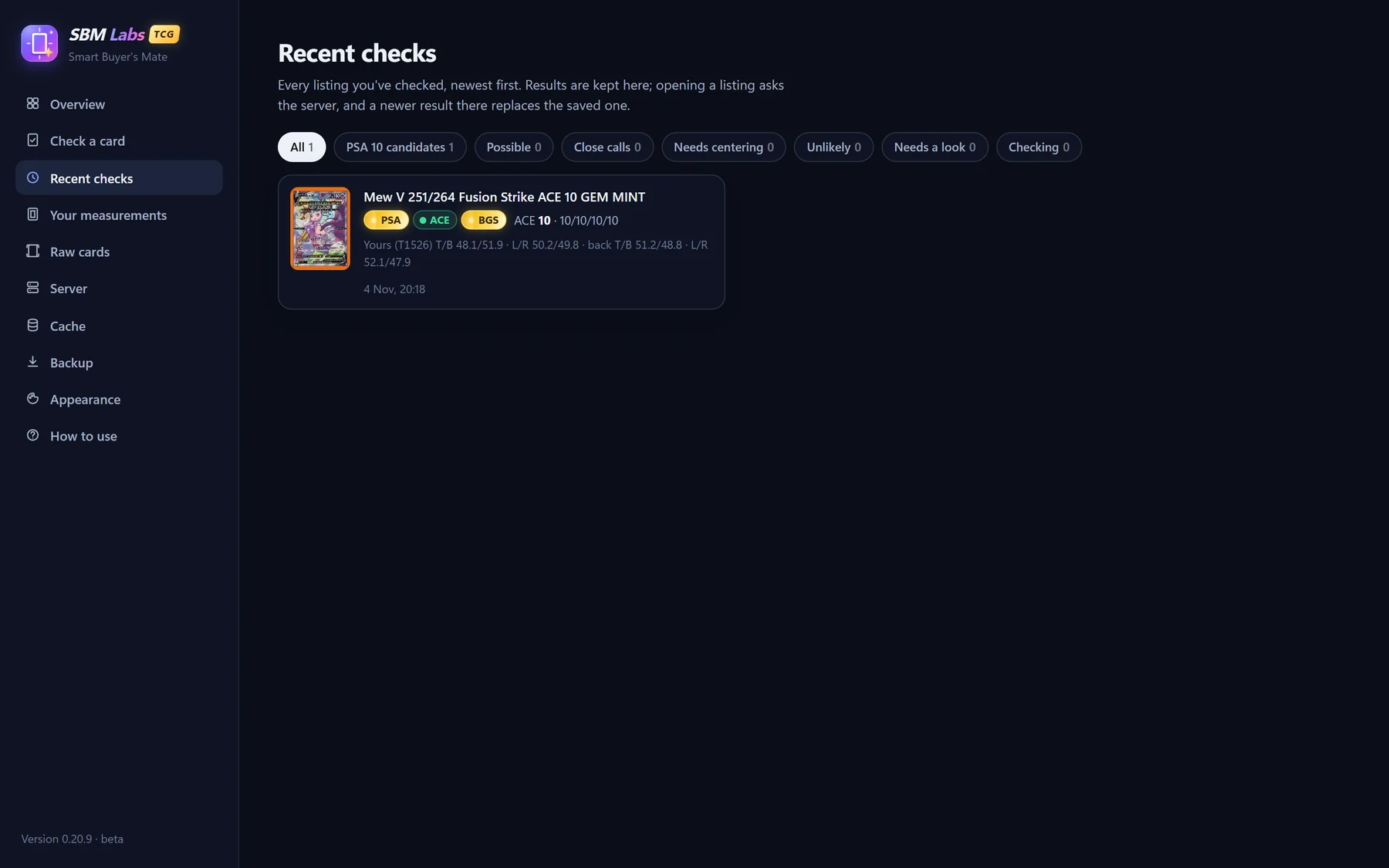
Recent checks
Every ACE slab listing you've checked, newest first: its tiles for PSA, ACE and BGS, ACE's grade and the centering, front and back. The buttons along the top pick a group, such as PSA 10 candidates or Close calls. Click a check to open its listing.
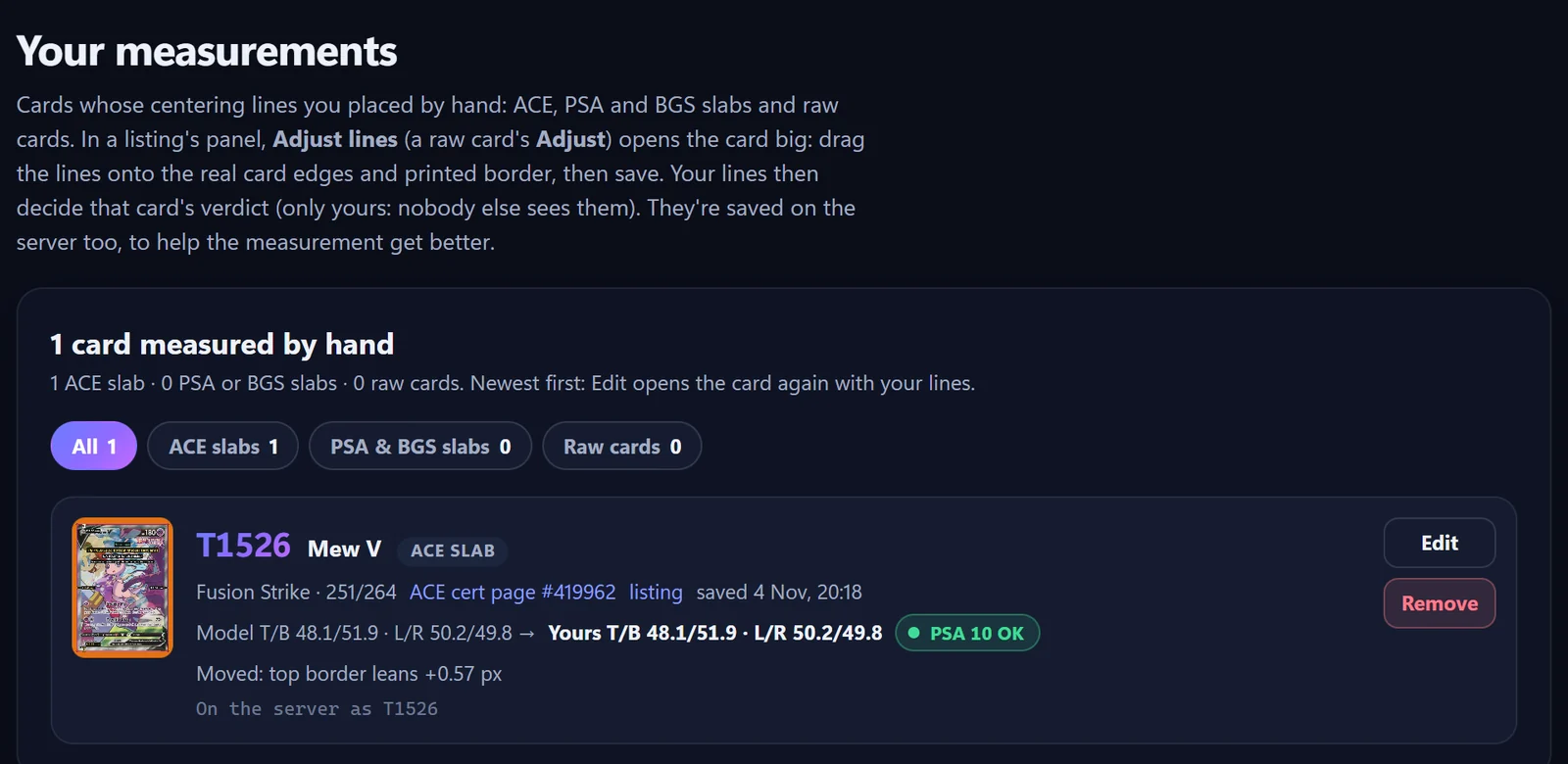
Your measurements
Every card you've placed lines on yourself, newest first: ACE slabs, PSA and BGS slabs, and raw cards. Pick a kind along the top to see just those.
- Edit opens the card on the measuring page with your lines (Edit back for the back).
- Remove takes your lines off. The card goes back to its measured lines.
Raw cards
Every raw card you've measured, from an eBay listing or your own photo, front and back. Drop, paste or choose a photo to add a card. Each card has Add the back, Adjust to check its corners and borders, and Remove. More in Raw cards.
Your account and emails
Under Server: who you're signed in as, how much you've used today, and Sign out.
Below it, Emails lets you choose what we send you:
- Release notices: when a new version is out, with what's new. On unless you turn them off.
- The newsletter: news, new features and what's coming, now and then. Off unless you turn it on.
Emails about your account, such as an access code or a reply to your message, come whatever you choose. Every email also has a link to change this.
Appearance
- Theme: Dark, Light, or Match my system.
- Panel position: bottom right, or bottom left to keep eBay's buy buttons clear.
Backup and cache
- Backup: Export settings saves your settings in one small file. Tick Include saved data to take everything to another computer, then Import a backup there. The file holds your sign-in, so keep it private.
- Cache: Wipe all cache clears the results saved in this browser. Your settings and your lines are kept, and the next listing you open asks the server again.